
Custom Authentication
This is a Pro feature
Scoold supports custom authentication providers through Para’s “passwordless” filter. This means that you can send any user info to Para and it will authenticate that user automatically without passwords. The only verification done here is on this secret key value which you provide in your Scoold Pro configuration file:
scoold.app_secret_key = "change_to_long_random_string"This key is used to protect requests to the passwordless filter and it’s different from the Para secret key for your app. Here’s the basic authentication flow:
Example: Custom auth flow
Section titled “Example: Custom auth flow”- A user wants to sign in to Scoold Pro and clicks a login button
- The button redirects the user to a remote login page hosted by you or your company
- The user enters their credentials and logs in
- If the credentials are valid, your auth server sends back a special JSON Web Token (JWT) to Scoold with the user’s basic information
- Scoold verifies the token and the user is signed in to Scoold
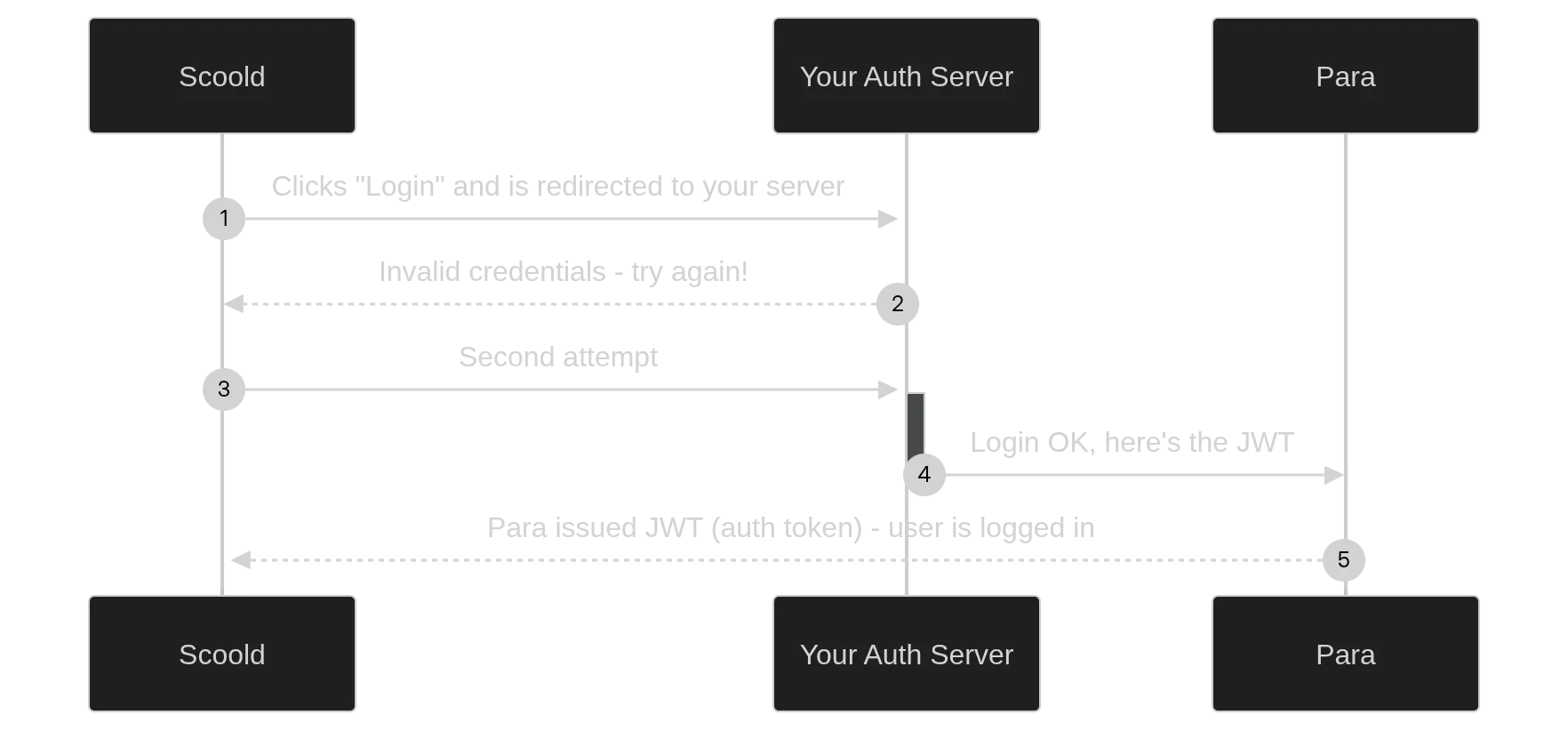
The JWT must contain the following claims:
email- user’s email addressname- user’s display nameidentifier- a unique user id in the formatcustom:123appid- the app id (optional)
The JWT is signed with the value of scoold.app_secret_key and should have a short validity period (e.g. 10 min).
The JWT should also contain the claims iat and exp and, optionally, nbf. Supported signature algorithms for the JWT
are HS256, HS384 or HS512.
Once you generate the JWT on your backend (step 4 above), redirect the successful login request back to Scoold:
GET https://scoold-host/signin/success?jwt=eyJhbGciOiJIUzI1NiI..&passwordless=trueThe UI button initiating the authentication flow above can be customized like this:
scoold.security.custom.provider = "Continue with Acme Co."# location of your company's login pagescoold.security.custom.login_url = ""There’s an example login page implementing this sort of authentication.
Login and logout redirects
Section titled “Login and logout redirects”You can configure Scoold to redirect users straight to the identity provider when they click the “Sign in” button. This feature is disabled by default:
scoold.redirect_signin_to_idp = falseThis works only for social login identity providers and SAML. It won’t work for LDAP or
basic password authentication. When enabled and combined with scoold.is_default_space_public = false,
unauthenticated users will be sent directly to the IDP without seeing the “Sign in” page or any other page on Scoold.
You can also configure users to be redirected to an external location when they log out:
scoold.signout_url = "https://homepage.com"