
Mattermost
This is a Pro feature
This page goes into detail how Scoold Pro integrates with Mattermost. Scoold users can sign in with Mattermost, use slash commands to interact with Scoold and also get in-chat notification for mentions and new posts on Scoold. Scoold allows you to map spaces to Mattermost teams or channels. By default, each Mattermost team is mapped to a single Scoold space when people sign in with Mattermost.
The integration endpoint for Mattermost is /mattermost - this is where Scoold will accept and process requests from
Mattermost. To enable the Mattermost integration you must create a new OAuth 2.0 app in Mattermost’s System
Console. Get the app’s credentials and add them to your Scoold configuration as scoold.mm_app_id and scoold.mm_secret.
If you just want the Scoold-Mattermost integration working and don’t want your users to login with Mattermost, you have the option to disable the Mattermost authentication button on the sign in page:
scoold.mattermost.auth_enabled = falseGetting started
Section titled “Getting started”- From the System Console, enable OAuth 2.0 Service Provider.
Then, create a new trusted Mattermost OAuth 2.0 application from the Integrations
section with name “Scoold”. The URL of the application can be the same as your Scoold server URL.
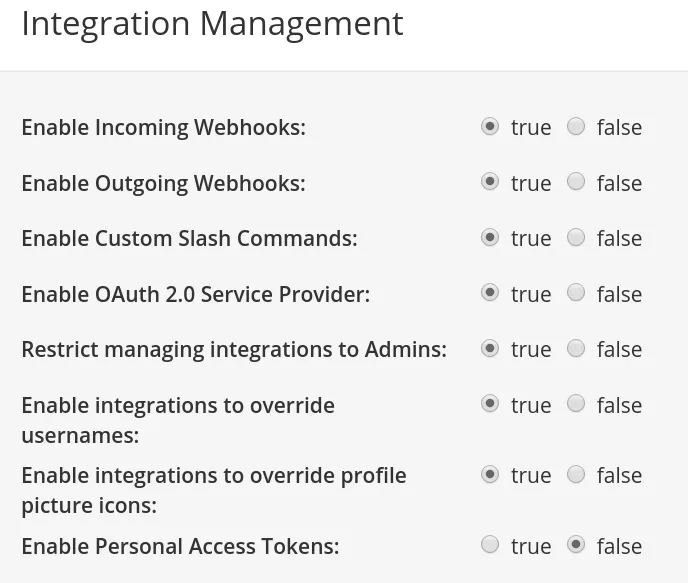
Add these two callback URLs (change them to match your Scoold server URL):
- Copy the Client ID and Client Secret of your Mattermost OAuth 2.0 application to your Scoold
configuration file and also configure the location of your Mattermost server:
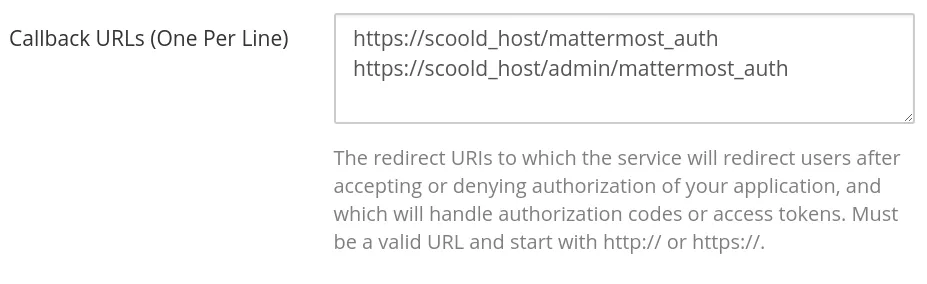
scoold-application.conf scoold.mm_app_id = "{Client ID}"scoold.mm_secret = "{Client Secret}"scoold.mattermost.server_url = "http://mattermost-host:8065" - Go to System Console > Integration Management and enable Incoming Webhooks, integrations to
override usernames, integrations to override profile picture icons and click “Save changes”:
- Visit the “Administration” page in Scoold and click the “Add to Mattermost” button.
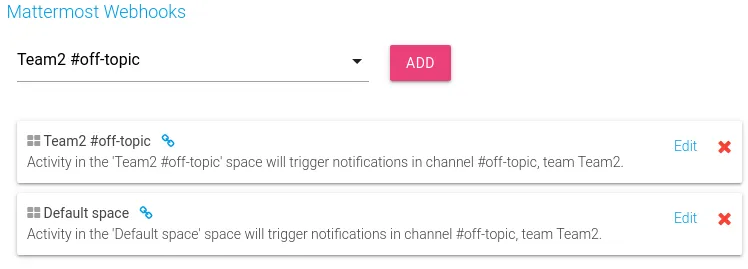
This will authorize Scoold to call the Mattermost API. Then add a notification webhook
for each channel that you wan to receive notifications from Scoold.
Repeat this step for up to 10 channels.
- You’re all set! Restart Scoold and it should be fully integrated with your Mattermost workspace.
For local testing, you may need to allow connections to
http://localhost:8000by settingAllowedUntrustedInternalConnections: localhostin your Mattermostconfig.json.
Configuration properties
Section titled “Configuration properties”Here are all configuration properties for Mattermost:
# Mattermost OAuth2 client idscoold.mm_app_id = ""# Mattermost OAuth2 client secretscoold.mm_secret = ""
scoold.mattermost.server_url = "http://localhost:8065"scoold.mattermost.bot_username = "scoold"scoold.mattermost.bot_icon_url = "http://localhost:8000/images/logowhite.png"scoold.mattermost.map_workspaces_to_spaces = truescoold.mattermost.map_channels_to_spaces = falsescoold.mattermost.post_to_space = "workspace|scooldspace:myspace|default"
scoold.mattermost.notify_on_new_question = truescoold.mattermost.notify_on_new_answer = truescoold.mattermost.notify_on_new_comment = truescoold.mattermost.dm_on_new_comment = falsescoold.mattermost.default_question_tags = "via-mattermost"All the other slash commands and notifications work just like with Slack and are described above. The Mattermost integration will automatically create a slash command for each channel linked to Scoold on the admin page.
When scoold.mattermost.dm_on_new_comment is enabled, Scoold will send a direct message notification to the author of
the post on which somebody commented. By default, DMs are turned off and the notification is sent to the channel instead.
You can also save a full message thread on Scoold with the command /scoold save {thread_link} - this will create a new
question from the first message of the thread and save each reply as an answer on Scoold.
In-chat notifications
Section titled “In-chat notifications”Scoold will notify the channels where you have it installed, whenever a new question or answer is created, and also
whenever a user is mentioned. To install the application on multiple channels go to the Administration page and click
one of the “Add to Mattermost” buttons for each channel where you wish to get notifications. You can receive
notification on up to 10 channels simultaneously. Notifications for new posts will go to the channel associated with the
space in which the post was created. For example, when using Slack, if scoold.slack.map_workspaces_to_spaces is true,
and a question is created in space “Team1 #general”, Scoold will search for webhook registrations matching that
team/channel combination and only send a notification there. Direct message webhooks will be used only if there’s no
space-matching channel found.
Approving new posts from chat
Section titled “Approving new posts from chat”This works if you have enabled scoold.posts_need_approval. When a new question or answer is created by a user with less
reputation than the threshold, a notification message will be sent to Slack/Mattermost/Teams, giving you the option to
either approve or delete that post. The action can only be performed by moderators.