
Slack
This is a Pro feature
This page goes into detail how Scoold Pro integrates with Slack. Scoold users can sign in with Slack and they can also use slash commands to search and post questions. Also Scoold can notify Slack users when they are mentioned on Scoold. Finally, Scoold allows you to map spaces to Slack workspaces or channels. By default, each Slack workspace (team) is mapped to a single Scoold space when people sign in with Slack.
The integration endpoint for Slack is /slack - this is where Scoold will accept and process requests from Slack.
To enable the Slack integration you need to register for a Slack app first and set scoold.sl_app_id and scoold.sl_secret.
Getting started
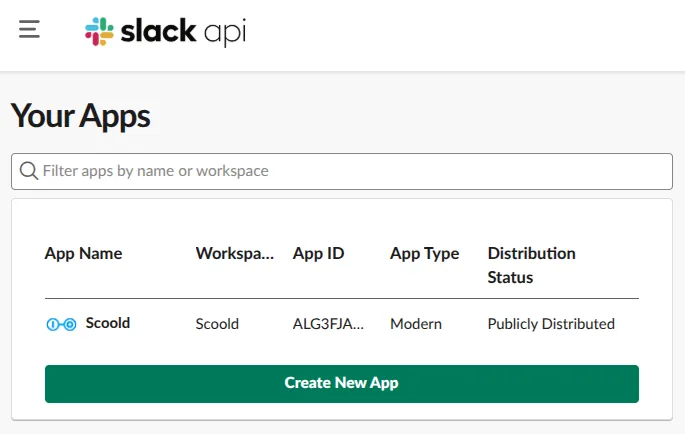
Section titled “Getting started”- ↗ Create a new Slack app and copy the App ID,
Signing Secret, Client ID and Client Secret into your Scoold configuration:
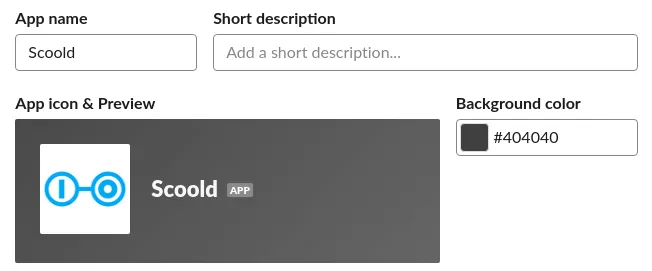
scoold-application.conf scoold.sl_app_id = "{Client ID}"scoold.sl_secret = "{Client Secret}"scoold.slack.app_id = "{App ID}"scoold.slack.signing_secret = "{Signing Secret}" - Edit you Slack app settings and add the Scoold logo
to your app (or use your own). Also, write a short description and “Save changes”.
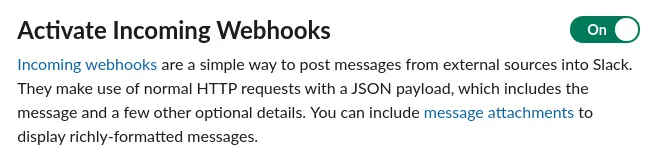
- Activate incoming webhooks for your Slack app and “Save changes”:
- On the “Interactivity & Shortcuts” page in Slack, activate interactive components for your Slack app by entering
the URL of your server and the path, e.g
https://myscoold.co/slack: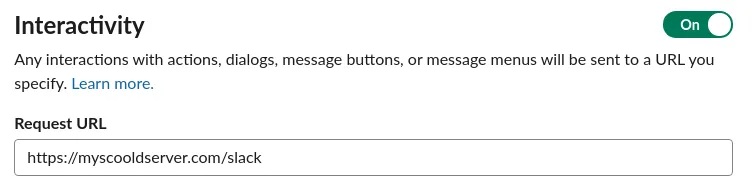
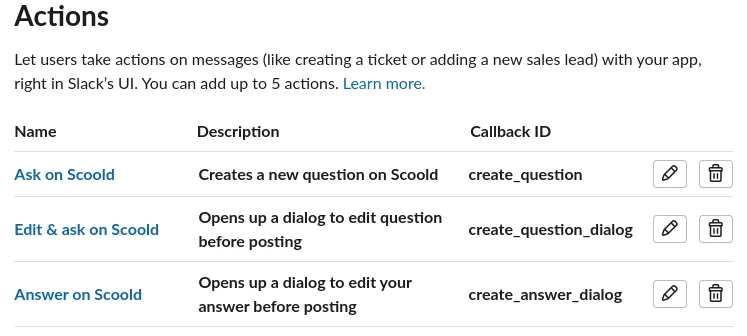
- On the same page, under “Shortcuts”, create the following message shortcuts (actions),
then click “Save changes”:
- Create the
/scooldslash command pointing the “Request URL” to your Scoold Pro instance, e.g.https://myscoold.co/slack. “Escape channels, users, and links sent to your app” must be checked: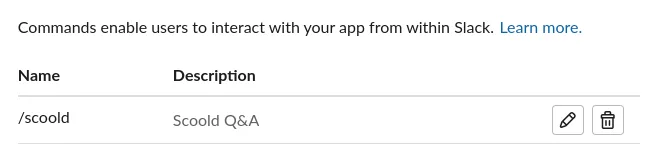
- Whitelist your Para and Scoold integration endpoints under Slack’s “OAuth & Permissions”.
The first one should contain the URL of your Para server, e.g.
https://paraio.com/slack_auth, the second one should contain the URL of your Scoold Pro websitehttps://myscoold.co/admin/slack_auth.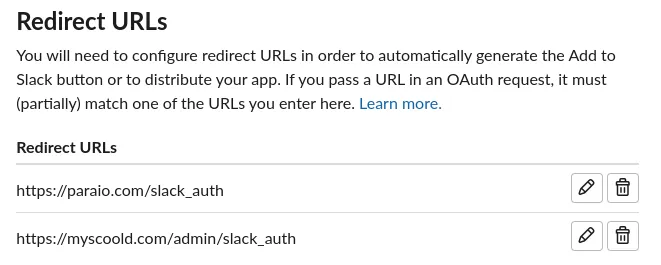
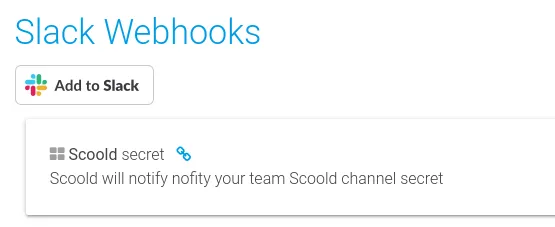
- Visit the “Administration” page in Scoold and click the “Add to Slack” button. This will link a channel on
Slack to Scoold and allow it to send notifications there. Repeat this step for up to 10 channels.
- Go to “OAuth & Permissions” in Slack and make sure your app is using granular scopes
(all newer apps use them). Then add following scopes:
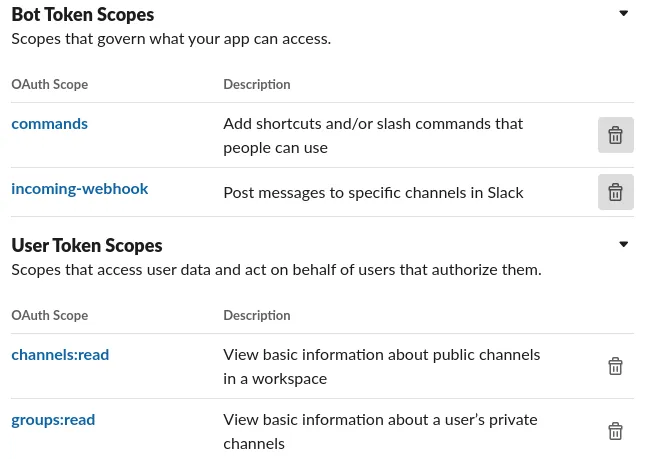
- You’re all set! Restart Scoold and it should be fully integrated with your Slack workspace.

Configuration properties
Section titled “Configuration properties”Here are all the configuration properties for Slack:
# Slack OAuth2 client idscoold.sl_app_id = ""# Slack OAuth2 secretscoold.sl_secret = ""
scoold.slack.app_id = "SHORT_APPID"scoold.slack.map_workspaces_to_spaces = truescoold.slack.map_channels_to_spaces = falsescoold.slack.post_to_space = "workspace|scooldspace:myspace|default"
scoold.slack.notify_on_new_question = truescoold.slack.notify_on_new_answer = truescoold.slack.notify_on_new_comment = truescoold.slack.dm_on_new_comment = falsescoold.slack.default_question_tags = "via-slack"scoold.slack.auth_enabled = true
Setting scoold.slack.map_channels_to_spaces will ask for additional permissions, namely channels:read and groups:read.
On sign in, Scoold will read all your channels and create spaces from them. The workspace space is always created if
scoold.slack.map_workspaces_to_spaces = true, which is the default setting.
When creating questions from Slack they are posted to the channel workspace by default, if
scoold.slack.map_channels_to_spaces is enabled. For example, in this case, for a team “My Team” and channel “chan”,
your space will become “My Team #chan”. This is controlled by scoold.slack.post_to_space which is blank by default.
If you set it to workspace, then questions will be posted to the “My Team” space. Or you could set a specific Scoold
space to post to with scoold.slack.post_to_space = "scooldspace:myspace". If the value is default then all questions
posted from Slack will go to the default space.
You can also create answers to questions from Slack, either from the message action button or by typing in the
/scoold ask command. This requires the URL of a specific question you wish to answer.
Clicking the “Ask on Scoold” message action will also save the full message thread on Scoold. The action will create a new question from the first message of the thread and save each reply as an answer on Scoold.
When scoold.slack.dm_on_new_comment is enabled, Scoold will send a direct message notification to the author of
the post on which somebody commented. By default, DMs are turned off and the notification is sent to the channel instead.
Slack authentication can be disabled with scoold.slack.auth_enabled = false and the “Continue with Slack” button
will be hidden away.
Slash commands in Slack
Section titled “Slash commands in Slack”Typing in /scoold help gives you a list of commands available:
/scoold- Interact with your Scoold server/scoold ask [text]Ask a question directly, first sentence becomes the title. Example:/scoold ask How does this work? @john I'm having troubles with.../scoold answer [question URL] [answer]Answer a question directly. Example:/scoold answer https://host/question/123 This is my answer to your question, @john./scoold search [query]Search for questions. Example:/scoold search solution AND quick*/scoold search-people [query]Search for people. Example:/scoold search-people John*/scoold search-tags [query]Search for tags. Example:/scoold search-tags solution*/scoold versionGet version information for Scoold and Para./scoold whoamiGet information for your Scoold account./scoold statsGet general statistics.
Message actions in Slack
Section titled “Message actions in Slack”Here are the interactive message actions which are currently implemented:
create_question- “Ask on Scoold”, Creates a new question on Scoold directly from a chat message.create_question_dialog- “Edit & ask on Scoold”, Opens up a dialog to edit question before posting.create_answer_dialog- “Answer on Scoold”, Opens up a dialog to edit your answer before posting.
These allow you to perform actions from any channel and best of all, these can turn any chat message into a question or answer.
If you get an error “User not authorised to open dialogs” it means that your Scoold user is not logged in via Slack and Scoold doesn’t have a Slack access token on record. Simply log into Scoold with Slack and the error should go away.
In-chat notifications
Section titled “In-chat notifications”Scoold will notify the channels where you have it installed, whenever a new question or answer is created, and also
whenever a user is mentioned. To install the application on multiple channels go to the Administration page and click
one of the “Add to Slack” buttons for each channel where you wish to get notifications. You can receive
notification on up to 10 channels simultaneously. Notifications for new posts will go to the channel associated with the
space in which the post was created. For example, when using Slack, if scoold.slack.map_workspaces_to_spaces is true,
and a question is created in space “Team1 #general”, Scoold will search for webhook registrations matching that
team/channel combination and only send a notification there. Direct message webhooks will be used only if there’s no
space-matching channel found.
Approving new posts from chat
Section titled “Approving new posts from chat”This works if you have enabled scoold.posts_need_approval. When a new question or answer is created by a user with less
reputation than the threshold, a notification message will be sent to Slack/Mattermost/Teams, giving you the option to
either approve or delete that post. The action can only be performed by moderators.