Scoold + Slack



Ask questions from Slack. Get answers in Scoold. Build a permanent knowledge base.
Stop losing knowledge in Slack chat threads. With the Slack integration, questions from your Slack channels can be routed to Scoold, where they get answered and indexed permanently.
Integration highlights
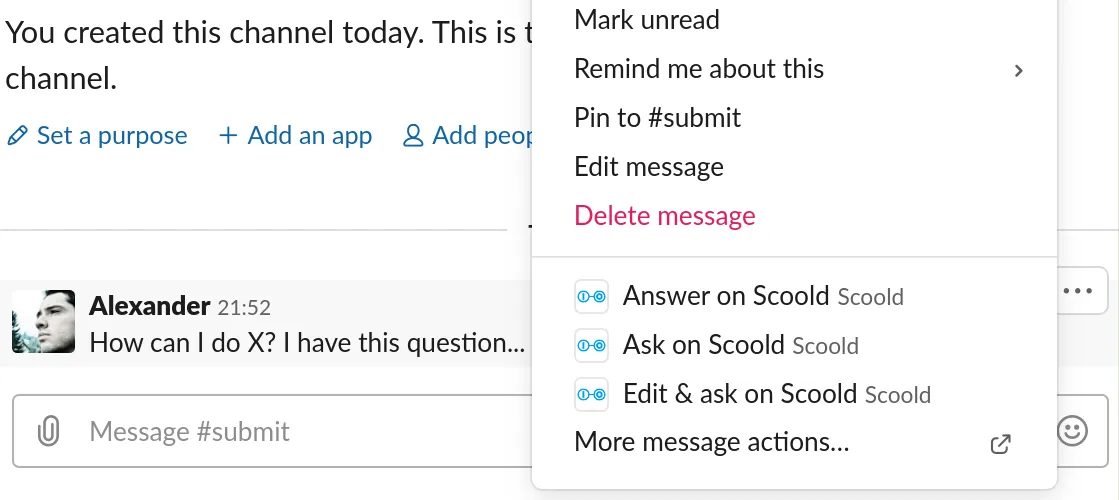
Create questions and answers instantly from Slack
• Asking a question on Slack is as easy as writing /scoold ask How do I...?
• To answer, simply type in /scoold answer [question URL] Here's my answer...
• You can also turn any chat message into a Scoold question or answer by using the special message actions.
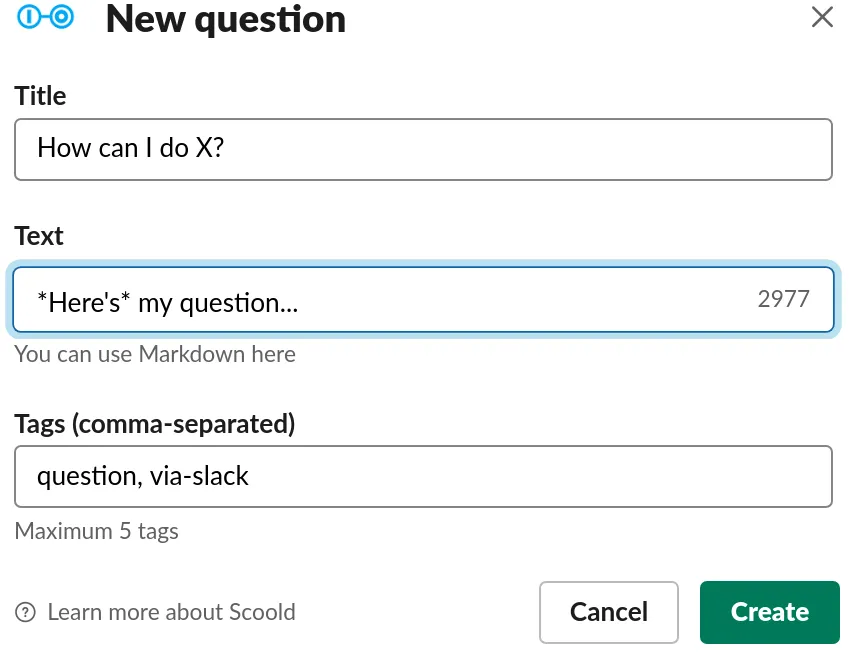
Full editing capability
• Compose a new question by opening the "Edit & Ask" dialog.
• To compose a new answer, click the context menu and choose "Answer on Scoold"
• Write longer pieces of text, choose the exact title and tags you want your question to have.
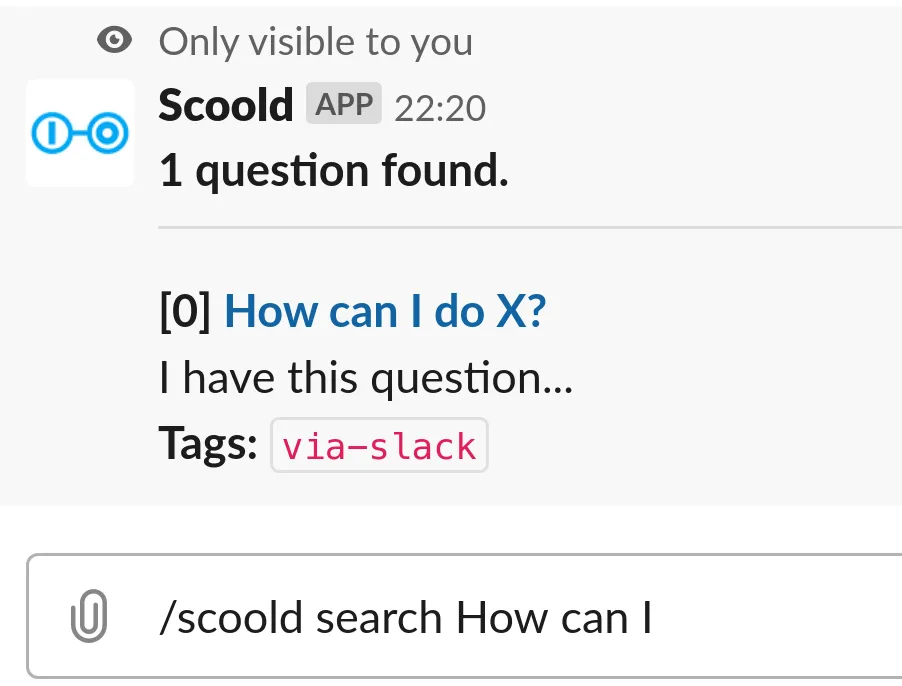
Search for questions, people or tags
Perform advanced search queries from any Slack channel by using the slash commands:
•/scoold search {query}
•/scoold search-people {name}
•/scoold search-tags {tag}
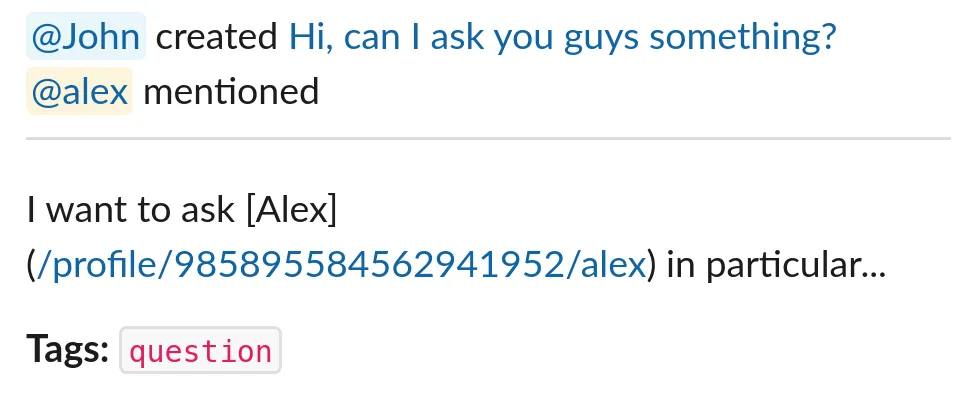
Real-time notifications
• Linked channels will be instantly notified whenever a new question or answer is created on Scoold.
• Mentions of people in chat are sent to the channel even if the person is mentioned at a later revision of the post.
• Mention anyone in Scoold from Slack, by linking to their profile in your post.
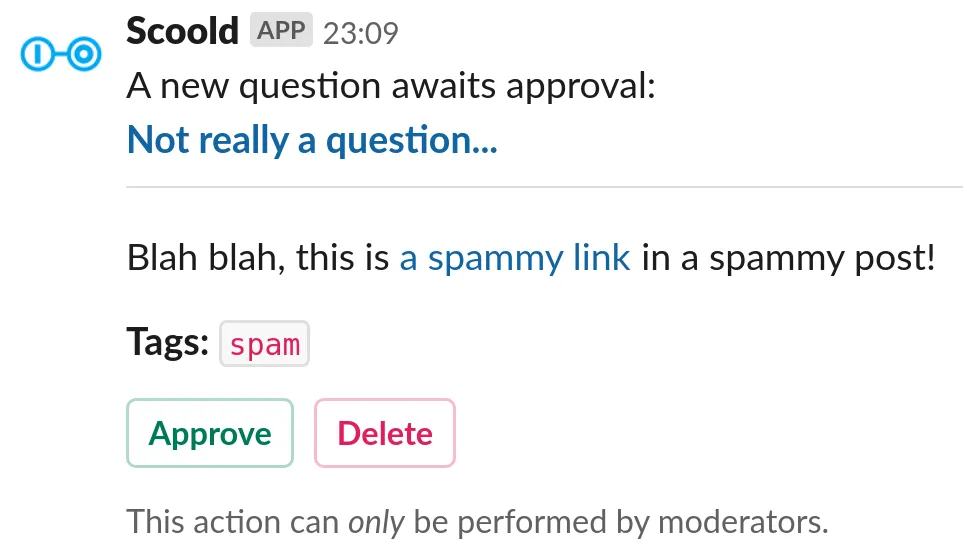
Approve questions and answers without leaving the channel
• A handy feature for moderators who wish to keep an eye on new posts on Scoold.
• If new posts require explicit approval from mods, Scoold will notify the chat by presenting the option to "Approve" or "Delete" the newly created post.
How to set it up
- 1
You'll need a copy of Scoold Pro up and running first.
- 2
Create a new Slack app from the Slack API Portal.
- 3
Copy the app credentials and configure Scoold to use them.
- 4
Connect Scoold to Slack from the "Administration" page in Scoold.
- 5
Follow the documentation to get started.
Need detailed setup instructions? Read the documentation →
Ready to build your team's Knowledge Base?Community Forum?Developer Hub?Support Center?Q&A Platform?Issue Tracker?
Join hundreds of organizations using Scoold Pro to capture and share knowledge effectively. Choose between a self-hosted license or a cloud subscription.